
Guide
Netplay Offline Downloads: Save and Watch Anywhere
Download movies and shows for offline watching. Quality picks, storage management and resume behavior, tested.
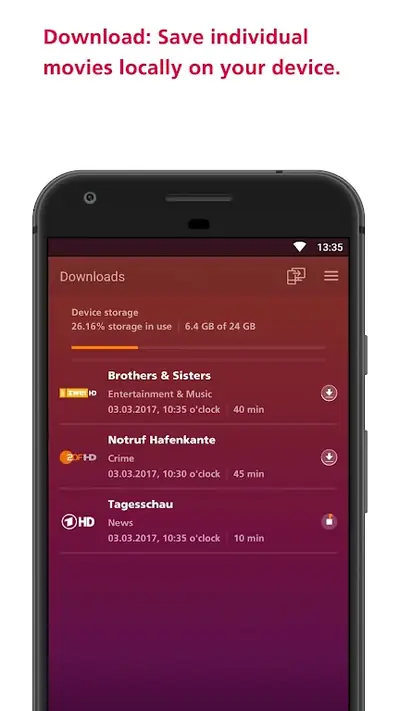
Netplay ships with a proper download manager: queue titles on Wi-Fi, watch them later with zero connection. Here is how to use it, tuned from real testing by the Netplay official site team.
How to download a title
Open any movie or show, tap the download icon, and pick a quality. The title lands in your Downloads tab with a progress bar. Downloads continue in the background, and they pause and resume cleanly if you drop off Wi-Fi mid-transfer.
Picking the right quality
Higher quality means bigger files and longer waits. For phones, the middle quality setting is the sweet spot: sharp on a small screen, kind to storage. Save the top quality for tablets and big-screen casting. Our data usage tips have the rough file sizes per hour.
Managing storage
Downloads live in the app's storage. When space runs low, delete finished titles from the Downloads tab rather than clearing app data, which would wipe your settings too. If the app feels sluggish, the best settings guide shows what to tune.
Watching offline
Open the Downloads tab with no connection and press play. Subtitles work offline too, since they download with the title. If you need a fresh copy of the app, the download page has the current version ready.
Quick Answers
How do I download shows in Netplay?
Open the title, tap the download icon, choose a quality, and find it in the Downloads tab when it finishes.
Do interrupted downloads restart from zero?
Yes. In Netplay, downloads pause and resume cleanly when you leave and rejoin Wi-Fi instead of restarting.
Where are downloaded files stored?
They live in the app's storage. Delete finished titles from the Downloads tab to free space.