
Guide
Netplay Not Working? Every Fix That Matters
Not working? Five fixes in order: network, cache, update, clean reinstall and storage. Tested on real devices.
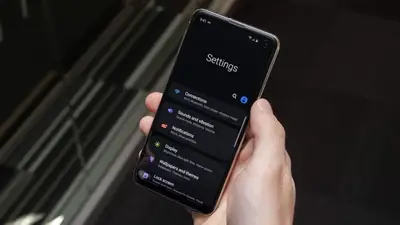
The app usually just works, but when it does not, the cause is one of five things. Run this checklist in order; it fixes nearly every Netplay report we have seen.
1. Check your connection first
Half of all issues are network issues. Switch between Wi-Fi and mobile data once. If streams work on one and not the other, the app is fine and your network is the story.
2. Clear the app cache
Settings, Apps, then the app entry, Storage, Clear cache. This fixes broken thumbnails, stuck loading screens and search that returns nothing, without touching your downloads.
3. Update to the latest version
Older builds had rougher network recovery. Installing the latest version over your current copy keeps settings and fixes most playback bugs.
4. Reinstall cleanly
If the cache clear and update both fail, uninstall, restart the phone, and install fresh. This is the nuclear option and it works because it wipes corrupted local data. See our install guide for the clean steps.
5. Free up storage
Android gets flaky below a few hundred megabytes free. Downloads stall, streams stutter, the app crashes on open. Clear space and try again.
Quick Answers
What do I do when Netplay stops working?
In order: check the network, clear the app cache, update to the latest version, reinstall cleanly, free up storage.
Does clearing cache delete my downloads?
No. Clearing cache leaves downloads and settings alone; it only wipes temporary files.
The app crashes on open. Now what?
That points to corrupted local data or low storage. Reinstall cleanly after freeing space.